

How to Use Training Module
Training Module Utilities
- Training open automatically once user linked with organization.
- As user complete his certification real time score is added in training KPI
- Next role training open automatically based for succession planning.
- 360° Feedback Training Performance Tracking.
- Training History maintenance and analytic & dashboards to monitor training effectiveness.
How It Benefits Your Organization
- Track training status and impact through real-time web-based reports.
- Analyze competency gaps & create targeted employee training programs to address them.
- Determine training effectiveness and ROI by tracking improved performance of competencies.
- Centralized tracking Track learning activities within one cloud-based learning management solution by monitoring through user workSpace.
- Email Reminders.
Employee’s Training Work Flow and Procedures:
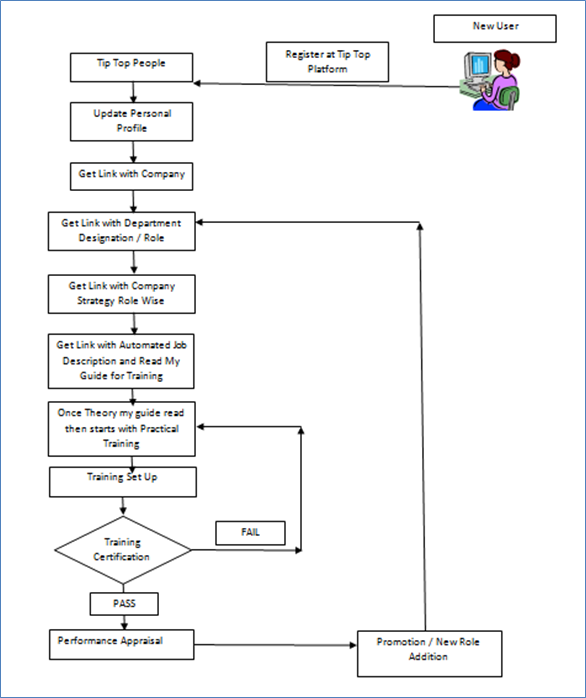
Individual’s Training Page:
Once an employee is attached to the Job Description we require a mechanism where his uncertified jobs are automatically linked to training requirement modules.
- Open ‘My Guide’ for every Individual to read and remark.
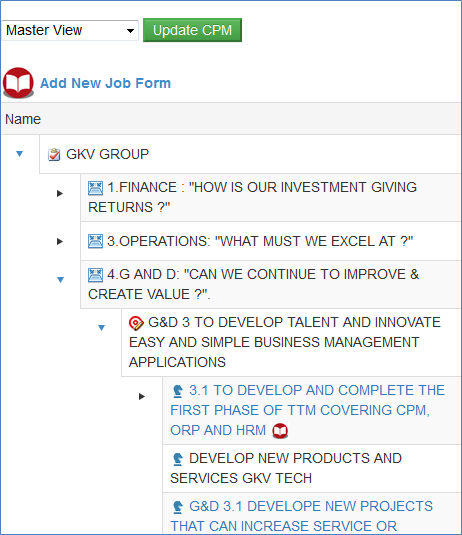
Note: It show only to Employee holding designation with Activity Title Linked
- On my guide page Training material will be displayed based on the designation/ title and job description for particular employee lined for.
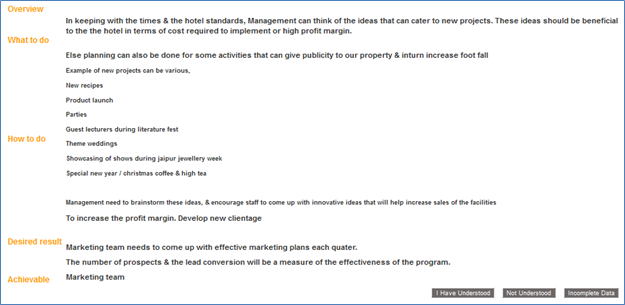
- Employee will read the documentation there, provided guide for overview of that job, how to do, what to do, desired result and achievable.
- Employee/ trainee will read that and will provide his/ her remarks as ‘I have Understood’, ‘Not Understood’ or ‘Incomplete Data’.
Training Schedule Setup:
Using this form admin or supervisor can schedule and create training for the employees or for the employees who are under his/ her supervision.

- Initially admin/ supervisor will select the Category of Training like Task or Initiative from the drop down menu.
- Admin will select the company name from the drop down and then will select the department and location where training has to be offered or to be scheduled.
- Based on Task or Initiative, respective Jobs will be displayed in drop down menu and here admin will select the Job from there. And then admin will select the name of Trainer from the drop down list.
- Admin will select the ROLE of Trainer whose name he selected as a trainer from the drop down menu.
- After selecting Agenda from the drop down menu, now admin will define the start date and end date of that training.
- If the training schedule or training material is available than admin can give its URL here at provided text box., also admin can input the duration of this training and then he can select the session in which training has to be scheduled.
- Finally admin will click on Insert button and this record will be saved and training schedule setup will be completed.
- Once training Schedule is setup, it will be displayed on the same home screen.
- Click on Add Trainee option to add the trainee in that defined training schedule.
- Check on ‘List All’ check box item, and select the name of employee from the drop down menu who is going to take this training.
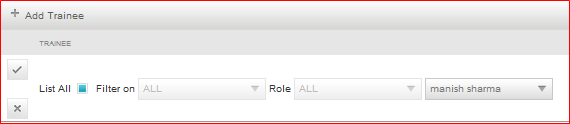
- Click on right button to activate the selected employee as Trainee.
Training Certification:
Once the training schedule is setup and trainees added into that, training will take place and training certification process will initiate.
- Scheduled training will be displayed in this form along with all mentioned details about.

- Click on edit option given at the front of this record.
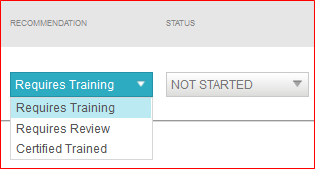
- Here, on this form trainer will enter the remarks, training date, training outcome, recommendation, certification date etc.

- Training outcome will be entered as Unsatisfactory, Needs improvement, Excellent or Outstanding etc.

- Trainer can enter recommendation and comments too.
- Click on right button to save this record.
- If training status is completed than, its approval will be done and employee will be awarded as certified employee.
Approve Training:
Once employees training certification is completed from trainer side now this will be approved.
- On Approve training page details of training certification will be displayed for respective employee.
- If admin or Training approver want to edit any status than click on Edit button to alter the details.

- Select the name of employee to approve for the certification from the list of employees.
- Click on Accept Selected and this will give a success message as “Training Certification has been approved”.